
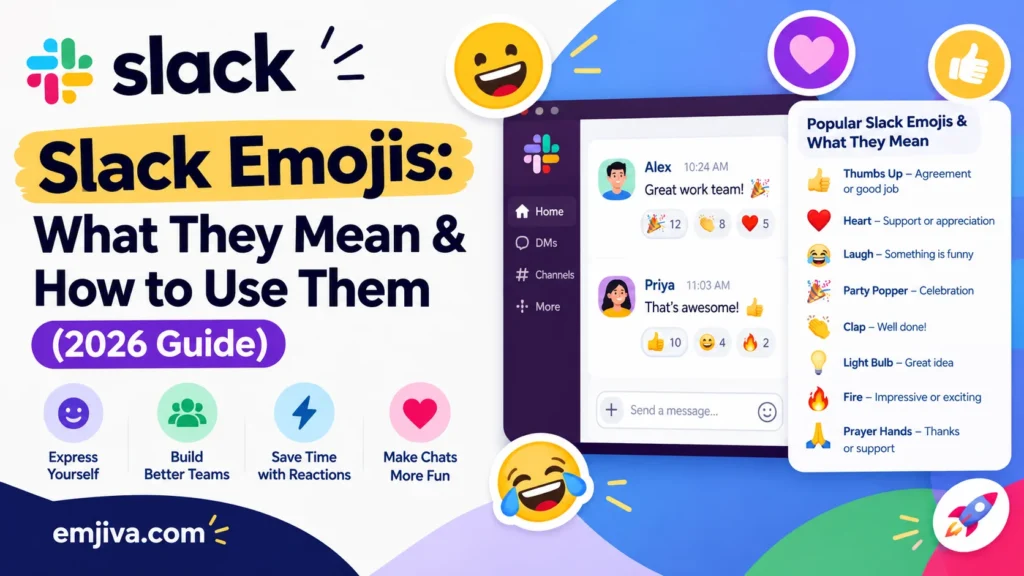
Slack emojis are the standard Unicode emojis plus any custom images your workspace has uploaded. You can type them into a message or stick them under someone else’s message as a reaction. To type one, enter a colon and a word (:tada:) and pick from the menu. To react, hover over a message and click Add reaction.
The part that trips people up isn’t the clicking. It’s the meaning. A 👍 can be warm or dismissive, a 🙏 can be “thanks” or “please,” and nobody has to agree with you about which you meant. So this guide covers the mechanics quickly, then spends real time on what emojis signal at work and how to avoid sending the wrong message.
What do you want to do?
| I want to… | Go to |
|---|---|
| Type an emoji | How to type emojis |
| Find a shortcode | Shortcodes |
| React without replying | How reactions work |
| Pick the right emoji for a situation | Which emoji should I use? |
| Understand what 👀 ✅ 🙏 mean | Meanings at work |
| Avoid being misread | Common mistakes |
| Set a status emoji | Status emojis |
| Add my own emoji | Custom emoji |
| Fix something that isn’t working | Troubleshooting |
How to type emojis in Slack
You have two options.
Type a shortcode. Put a colon in the message box and start typing the emoji’s name. Slack’s help center says you type the emoji code or alias after the colon, and that you can search a word if you can’t remember the exact code. A menu pops up as you type. Press Enter or click to insert.
Use the picker. Click the smiley-face icon in the message field to browse by category, search, or grab something you used recently.
iPhone users get caught by one quirk. The emoji button on the iOS keyboard gives you Apple’s emoji, not Slack’s, so it knows nothing about your workspace’s custom emoji. To use a custom one, type its code in the message field.
Set a default skin tone
On desktop, open the emoji menu and click the hand icon in the bottom-right corner to choose a default. After that, gesture emojis like 👍 🙏 👋 use it automatically. For emojis showing more than one person, right-click to customize.
Slack emoji shortcodes you’ll actually use
You don’t need to memorize these. A few just come up constantly. Slack’s code doesn’t always match the official Unicode name: 🎉 is “Party Popper” officially but :tada: in Slack.
| Emoji | Official name | Slack code |
|---|---|---|
| 🎉 | Party Popper | :tada: |
| 👀 | Eyes | :eyes: |
| ✅ | Check Mark Button | :white_check_mark: |
| 👍 | Thumbs Up | :+1: or :thumbsup: |
| 🙏 | Folded Hands | :pray: |
| 🙌 | Raising Hands | :raised_hands: |
| 💯 | Hundred Points | :100: |
| 🔥 | Fire | :fire: |
| 🚀 | Rocket | :rocket: |
| 👋 | Waving Hand | :wave: |
One easy mix-up: ✔️ (Check Mark) is a different emoji from ✅, with its own code, :heavy_check_mark:. If a code won’t come to mind, type a keyword like check and choose from the menu.
How reactions work
A reaction is a small emoji attached under a message. It’s Slack’s way of saying “I saw this” or “nice” without adding another line to the channel.
- Add one: hover over the message and click Add reaction. On mobile, tap and hold the message.
- Remove yours: reactions you add are highlighted in blue. Click it again to take it off.
- See who reacted: hover over (or tap and hold) a reaction to see names. Reactions are not anonymous.
- One-click reactions: hovering can show three suggested emoji. Admins set the workspace defaults, and you can swap in your own three in your preferences.
- Canvases: on desktop you can highlight text in a canvas and react to it instead of leaving a comment.
Slack’s own team wrote in 2016 that after reactions launched internally, the total number of messages dropped, because acknowledgment no longer needed its own message. That’s the whole point of reactions, and also why the choice of emoji matters: it’s often the only reply the person gets.
Which emoji should I use?
If you just need an answer for a situation, start here. These are common choices, not official rules.
| You want to say… | Common choice | Watch out for |
|---|---|---|
| “I’ve seen this and I’m looking” | 👀 | Can read as “just watching” on sensitive posts |
| “Done” | ✅ | Don’t also use it for casual agreement |
| “Got it” or “okay” | 👍 | Too thin for feedback or bad news |
| “Thank you” | 🙏 | Reads as “please” after a request |
| “Great work” | 🙌 | Fine for people; use 🎉 for occasions |
| “We shipped it” | 🚀 or 🎉 | Match the channel’s energy |
| “Exactly right” | 💯 | Informal, so skip it in formal announcements |
| “Understood, on it” | 🫡 | Lighter tone than 👍 |
| “I have a question” | ❓ | Follow up with a written reply in the thread |
| “I’m waiting on something” | ⏳ | Say what you’re waiting for |
| “I disagree” | Don’t use 👎 alone | Reply in words instead |
What common Slack emojis mean at work
First, the caveat. Nobody officially defines workplace emoji. Unicode standardizes the characters and their names, not what a coworker means when they send one. What follows are the readings you’ll run into most. Your team may differ, and the surrounding words usually decide.
Acknowledging and finishing things
👀 Eyes usually means “I’ve seen this and I’m looking into it,” which is why it’s everywhere on bug reports and requests. It can also mean plain curiosity. On a delicate post, it may feel like someone’s watching rather than helping.
✅ Check Mark Button is the “done” emoji. Some teams use it for “approved.” It only works as a status if people don’t scatter it around as general agreement.
👍 Thumbs Up is the default “got it.” It’s fast and friendly in a busy channel. After someone shares a mistake or a hard update, it can land as too brief.
Praise and celebration
🙌 Raising Hands means “great work” or “great news,” and often works like a virtual high-five. 🎉 Party Popper marks occasions: launches, birthdays, anniversaries, closed deals. 🚀 Rocket says shipped or launching. 💯 Hundred Points says “exactly right.”
The two that depend heavily on context
🙏 Folded Hands splits. After a favor it means “thank you.” After a request (“Can you send the file today? 🙏”) it means “please.” Some people read it as hope. When it matters, add words.
🔥 Fire on someone’s work means “that’s excellent.” On an incident post, it signals something burning. Same emoji, opposite mood.
Pairs people mix up
| Pair | Usual difference |
|---|---|
| ✅ vs 👍 | ✅ often means done; 👍 often means received / okay |
| 🙌 vs 🎉 | 🙌 praises a person or effort; 🎉 marks an occasion |
| 🙏 vs 🤝 | 🙏 is thanks or a request; 🤝 (Handshake) suggests an agreement |
| 👀 vs 🫡 | 👀 is “I’m looking”; 🫡 (Saluting Face) is “understood, on it” |
Three examples of context changing the meaning
These conversations are invented to show how it plays out, not real messages.
1. 👀 as a promise
Priya: Does anyone know why the report export keeps failing? Marcus: 👀
Marcus is claiming it without typing “I’ll look.” But 👀 can also mean “just watching,” so if Priya needs it handled today, she might still wait for a follow-up before relaxing.
2. ✅ as closure
Dana: Invoice template is updated and uploaded. Leo: ✅
Leo is confirming it’s received and fine. If Leo’s team reserves ✅ for “completed by the owner,” he’d have used 👍 instead. That’s exactly where an agreed convention saves confusion.
3. 🙏 doing two jobs
Hana: Could you send the slides tonight? 🙏 Omar: Sending now 🙏
Hana’s 🙏 means “please.” Omar’s means roughly “no problem, thanks for waiting.” Same image, two meanings, and the sentence around each one makes it clear.
Mistakes that cause misunderstandings
Most emoji trouble at work comes from a short list of habits.
- Reacting when the person asked a question. A 👍 doesn’t tell someone which option you chose. If the message contains a real question, answer it in words.
- Using ✅ for two things. If it means both “done” and “I agree,” nobody can tell whether the work is finished.
- Sending 👍 after bad news. Someone shares a mistake or a delay, and a thumbs up can feel like a shrug. A sentence costs ten seconds.
- Sending 🙏 as a deadline request with no words. “Please” and “thanks” look identical. Spell out the ask and the date.
- Stacking reactions. A pile of identical reactions can feel like pressure or noise, especially on a message about a sensitive topic.
- Forgetting reactions are visible. Anyone can hover to see who added what, so a 😬 or 👎 is attributed to you.
- Treating a reaction as formal approval. If a decision has to be on record (budget, legal, a deploy), use a written reply or whatever your team’s system of record is.
- Assuming everyone reads emoji your way. Meanings can shift by region, generation and team culture. With people you don’t know well, add a few words.
- Long emoji strings. They’re tiring to read, and screen readers typically announce emoji one by one. One or two is plenty.
Using reactions as a workflow
Some teams go beyond “nice job” and treat reactions as lightweight tools. Slack’s own team has described a few patterns:
- Voting. List the options in a message, give each one an emoji, and ask people to react to vote. In a busy channel a decision can happen in minutes.
- Progress tracking. Different emojis can mark a request as seen, in progress, or finished.
- Tagging for later. Slack staff described tagging messages with an emoji so they could search for that emoji afterward and pull together every tagged message, for example to collect feature ideas.
All of it only works if the group agrees on what each emoji means. That’s what the team reaction guide below is for.
Slack status emojis
Your status emoji sits next to your name wherever people can see it. Slack’s help center says others see it anywhere your name appears, and on desktop they can hover over it to read your full status. If you don’t pick one, Slack shows a 💬 speech balloon by default.
To set one: click your profile picture, click Update your status, type a message, and choose an emoji or one of the suggested statuses. On mobile, tap your profile picture, then the status field. Use Clear after to choose when it disappears, and tick Pause notifications if you want them off until it clears.
Scheduled and automatic statuses: you can schedule a status in advance for a vacation, lunch, or an important meeting, and it switches on at the time you set. Slack says you can schedule up to five at a time. Slack can also update some statuses automatically, which you control in Preferences.
Teams tend to settle on a small set. These are common examples, not official meanings:
| Emoji | Usually signals |
|---|---|
| 🎧 | Heads-down, focusing |
| 📞 | On a call |
| 🍕 | At lunch |
| 🏖️ | On vacation |
| 🤒 | Out sick |
A status is the one place where a short text line really helps. “🏖️ Back Monday” says more than 🏖️ alone, and a clear-after time stops a stale status from misleading people.
How to add custom emoji in Slack
Custom emoji are images your workspace adds. They appear under the Slack icon in the emoji picker and are available to everyone in the workspace.
Requirements
Slack says square images under 128KB with a transparent background work best. Accepted formats are JPG, PNG, and GIF, and animated GIFs can have up to 50 frames.
Steps on desktop
- Click the smiley-face icon in the message field.
- Click Add Emoji.
- Click Upload Image and choose your file.
- Under Give it a name, type a name, then click Save.
The name becomes the shortcode, so make it short and easy to type. Name by function (:ship-it:, :needs-review:) rather than an inside joke only two people understand.
Who can add them
By default, members can add custom emoji and guests can’t. Workspace owners and admins can restrict it further. If you can’t see Add Emoji, ask an admin. Slack also notes you can’t currently add custom emoji from the Android app, though you can use them there once they exist.
Packs, aliases, sharing, and deleting
- Emoji packs: ready-made sets from Slack. Owners, admins, and permitted members can add one. You can remove a whole pack but not a single emoji from it.
- Aliases: an extra code for an existing emoji, handy when people search for it under different names.
- Slack Connect: in a Slack Connect channel or DM, right-click another organization’s custom emoji to add it to yours.
- Deleting: members can delete only emoji they added. Owners and admins can delete any.
Design tips
Use a logo’s symbol rather than its full wordmark, because text turns unreadable at emoji size. Keep the subject centered and simple, and crop tight. Crop non-square images yourself before uploading rather than letting them get squeezed.
Slack emoji settings and why emojis look different
In Preferences → Messages & media, you can choose to display emoji as Unicode or plain text, make emoji larger when a message has only emoji, convert typed emoticons into emoji, and pick your three one-click reactions.
Appearance varies by device. Slack’s help center says it shows Apple’s emoji style on Mac and iOS, and Google’s style on Windows, Linux, and Android. So 😅 or 🙃 can look a little different to different coworkers. That’s one more reason not to hang a message on a subtle facial expression.
Troubleshooting Slack emoji problems
| Problem | Likely cause and fix |
|---|---|
| No Add Emoji option | You may be a guest, or an admin restricted uploads. Ask an owner or admin. |
| Can’t add emoji on your phone | Slack says Android doesn’t currently support adding. Use desktop or a browser. |
| Upload fails | Check the file: JPG, PNG, or GIF, under 128KB, ideally square. |
| Custom emoji missing from the iPhone keyboard | The iOS keyboard only has Apple emoji. Type the custom emoji’s code in Slack. |
Emoji show up as :text: | Check Preferences → Messages & media. The “display emoji as plain text” option may be on. |
| An emoji looks different from what a coworker describes | Platform style differs: Apple on Mac/iOS, Google on Windows, Linux, Android. |
| Can’t remember a code | Type a keyword after the colon and choose from the menu, or add an alias. |
Create a reaction guide for your team
If your team leans on reactions, write down five or six and pin the list in a channel. This is a starting template, not an official Slack standard. Change it to fit.
| Emoji | Suggested meaning |
|---|---|
| 👀 | I’m looking at this |
| ✅ | Done |
| 👍 | Seen / okay |
| ❓ | I have a question (reply in thread) |
| ⏳ | Waiting on something |
| 🙌 | Great work |
A few things make a guide stick. Keep it to a handful, because a long list won’t be remembered. Give each emoji one job. Say what doesn’t count (for example, “✅ means finished, not agreed”). And set the one-click reactions to your top three so the right choice is also the easiest.
FAQs
How do I type an emoji in Slack?
Type a colon and a keyword, such as :fire:, then pick it from the menu. Or click the smiley-face icon in the message box.
How do I react to a message with an emoji?
Hover over the message and click Add reaction. On mobile, tap and hold the message.
Can people see who reacted to a message?
Yes. Hovering over (or tapping and holding) a reaction shows who added it.
Can I change my emoji skin tone in Slack?
Yes. Open the emoji menu on desktop, click the hand icon at the bottom right, and choose a default.
What size should a custom Slack emoji be?
Square, under 128KB, with a transparent background, as a JPG, PNG, or GIF.
Why can’t I add a custom emoji?
You may be a guest, an admin may have limited uploads, or you may be using the Android app, which doesn’t currently support adding them.
Do Slack emojis look the same on every device?
No. Slack uses Apple’s style on Mac and iOS and Google’s on Windows, Linux, and Android, according to its help center.
How do I set a status emoji in Slack?
Click your profile picture, choose Update your status, pick an emoji, and set when it should clear. Without an emoji, Slack shows 💬 by default.
What does 👀 mean in Slack?
Most often “I’ve seen this and I’m looking into it.” It can also mean simple interest, so context decides.
What’s the difference between ✅ and ✔️?
They’re different emojis with different codes: :white_check_mark: for ✅ and :heavy_check_mark: for ✔️. Many teams use ✅ for “done.”

Shahzad is a writer at Emjiva, creating simple and helpful content about emoji meanings, emoji usage, texting, and digital communication. His goal is to make confusing emoji meanings easy to understand with clear, practical explanations.