
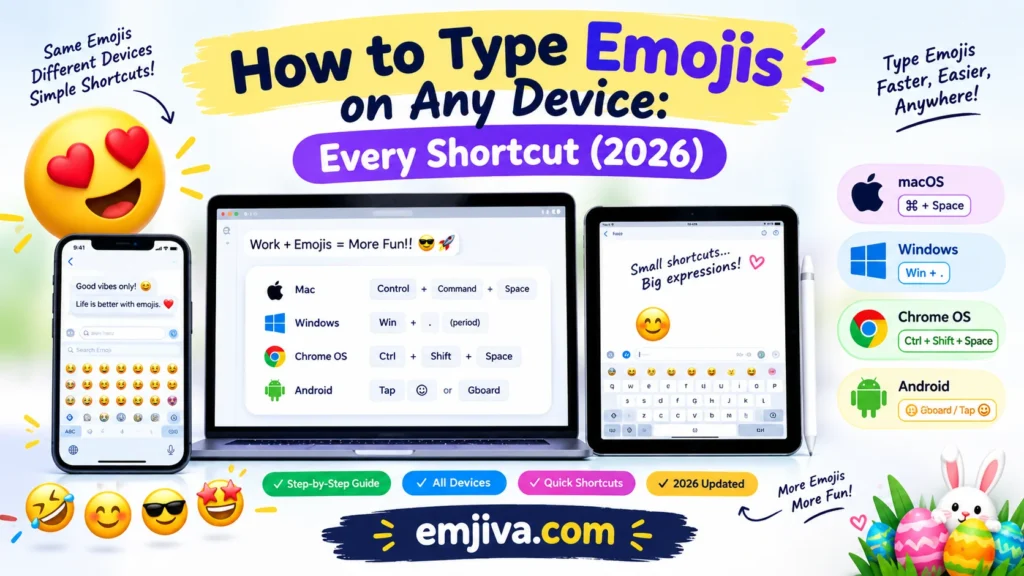
Every device has a built-in emoji picker. You just need to know how to open it.
On a phone, tap the smiley or globe key on the keyboard. On Windows, press Windows key + period. On a Mac, press Control + Command + Space. On a Chromebook, press Search + Shift + Space.
Find your device in the table and skip straight to it. Further down you’ll also find the shortcuts that make emojis much faster to type, and fixes for when the picker refuses to show up.
Find Your Device
| Device | Open the emoji picker | Jump to |
|---|---|---|
| 📱 iPhone / iPad | Tap the smiley or globe key | iPhone |
| 🤖 Android | Tap the smiley next to the spacebar | Android |
| 🪟 Windows 10 / 11 | Windows key + . (period) | Windows |
| 🍎 Mac | Control + Command + Space | Mac |
| 💻 Chromebook | Search + Shift + Space | Chromebook |
| 🐧 Linux (GNOME) | Right-click → Insert Emoji, or Ctrl + . | Linux |
| 💬 WhatsApp Web / Desktop | Type : plus a word |
iPhone and iPad
Phone keyboard bottom row with the smiley emoji key highlighted
Tap into a text field and look at the bottom-left of the keyboard. You’ll see either a smiley or a globe. Tap it, and the emoji keyboard opens.
Three things worth knowing once you’re in:
- Search instead of scrolling. The “Search Emoji” bar at the top is much faster than swiping through categories.
- Your recents are one tap away. The clock icon shows the emojis you use most.
- Skin tones are hidden. Touch and hold an emoji like 👍 and the tone options pop up.
The Emoji Key Is Missing
This is the most common iPhone problem, and it’s a setting, not a fault. Add the keyboard:
- Open Settings → General → Keyboard.
- Tap Keyboards → Add New Keyboard.
- Choose Emoji.
If you have several keyboards installed, the globe key cycles through them all. Touch and hold it to jump straight to Emoji.
Let Messages Suggest the Emoji
In Messages, write your sentence first, then open the emoji keyboard. Words that have a matching emoji get highlighted, and tapping one swaps it in. Handy when you can’t be bothered to hunt for 🔑 or 🍕.
Android
On most Android phones the keyboard is Google’s Gboard. Tap a text box, then tap the smiley beside the spacebar. Scroll the categories or search at the top.
Samsung and some other brands ship their own keyboard, so the emoji button may sit in a slightly different spot. If you can’t see it, look for a smiley near the spacebar. Installing Gboard from Google Play is free if you’d rather have the standard layout.
Emoji Kitchen is worth a try. Gboard on Android can blend two emojis into one sticker. You can also use a version of it from any browser: search “emoji kitchen” on Google, tap “Get cooking,” then copy the result and paste it into your chat.
Windows 10 and 11
Keycap diagram showing Windows key plus period to open the emoji panel
- Click inside a text field first. The panel only opens when there’s somewhere to type.
- Press Windows key + . (period) or Windows key + ; (semicolon).
- Start typing a word like “heart” to search, or browse the categories.
- Click an emoji, or use the arrow keys and press Enter.
One trap catches a lot of people: use the period key beside the comma, not the period on the number pad. The numpad one does nothing.
On Windows 11 the same panel also holds GIFs, kaomoji, symbols, and clipboard history. Microsoft has also started adding an “emoji and more” icon to the taskbar, but it hasn’t reached every PC, so the keyboard shortcut is the dependable route.
If the shortcut still won’t work, right-click the taskbar, open Taskbar settings, and switch on the touch keyboard. It has its own emoji button.
Skip Alt codes for emojis. Typing Alt + 1 gives you an old text symbol (☺), not a full-color emoji. It’s fine for symbols, but use the panel for the real thing.
Mac
Keycap diagram showing Control plus Command plus Space to open the Mac emoji picker
Click into a text field and press Control + Command + Space. Search or browse, then click.
There are other doors in:
- Menu bar: Edit → Emoji & Symbols.
- Fn / Globe + E on newer macOS versions.
- Touch Bar: tap the emoji button, if your Mac has one.
If you reach for the same emoji all day, set up a text replacement in your Mac’s keyboard settings. For example, make smiley expand to 😊. The exact menu name changes between macOS versions, but it’s always in the Keyboard section.
Chromebook
Keycap diagram showing Search plus Shift plus Space on a Chromebook
Click into a text field and press Search + Shift + Space. If your keyboard has a Launcher key instead of Search, use Launcher + Shift + Space. You can also right-click a text field and pick Emoji.
The picker covers emojis, symbols, emoticons, and GIFs. In Google Docs and Sheets there’s also Insert → Emoji.
Linux
Keycap diagram showing Ctrl plus period for the GNOME emoji picker
Linux doesn’t have one shortcut that fits every setup, but on GNOME (the default on Ubuntu and several other distros) it’s simple:
- Right-click in a text field and choose Insert Emoji, or
- Press Ctrl + . or Ctrl + ; to open the picker.
It works in GNOME’s own apps and many GTK apps, but not every app. If it doesn’t open in yours, launch the Characters app, copy the emoji, and paste it.
On KDE Plasma, add the Emoji Selector widget to your panel. Other desktops usually have their own picker, so check your keyboard settings.
WhatsApp Web and Desktop
On a computer, WhatsApp has its own emoji trick that works regardless of your operating system. In the message box, type a colon and a word, like :smile or :heart. Suggestions pop up above the box.
You don’t need the exact name. Typing :cry or :rain usually still surfaces something close. If nothing appears, check there’s no space after the colon, try another word, or click the emoji button beside the box.
One thing not to assume: this colon trick belongs to WhatsApp. Instagram on the web has no built-in version that we could confirm, so use your computer’s emoji picker there instead.
Faster Ways to Type Emojis
The picker is fine now and then. If you use emojis constantly, these save the most time.
1. Type to Search
In nearly every picker above (Windows, Mac, Chromebook, iPhone), you can just type a word to filter. Typing “fire” beats scrolling through categories every time.
2. Make Your Own Shortcuts
iPhone (Settings → General → Keyboard → Text Replacement) and Mac (Keyboard settings) both let you turn a short phrase into an emoji everywhere:
| You set up | It becomes |
|---|---|
omw | 🏃 |
ty | 🙏 |
lol | 😂 |
Pick phrases you wouldn’t type on their own, so nothing swaps by accident.
3. Emoticons and Shortcodes
Some apps convert classic emoticons automatically:
| You type | You get |
|---|---|
:) | 🙂 |
:( | 🙁 |
:D | 😀 |
;) | 😉 |
<3 | ❤️ |
Whether it converts depends on the app. Some do it as you type, some after you send, and some not at all.
In Slack, Discord, and GitHub, a colon plus a name (a “shortcode”) does the same job:
Maya: Release is live
:rocket:Sara: Amazing, nice work
:tada:Both messages show as 🚀 and 🎉.
Shortcodes belong to each app, so names can differ. The thinking face 🤔 is :thinking_face: in Slack, for example, and :thinking: in Discord. If a code doesn’t work, type part of the name and pick from the suggestions.
Why Your Emoji Looks Different on Someone Else’s Phone
Emojis are standard characters, but every company draws its own artwork. The same emoji looks different on iPhone, Samsung, and Windows. The meaning stays the same, but the style can change, which matters if you’re sending something where tone counts, like a work message.
New emojis are slower to arrive. Unicode approves a batch, then each device adds it through system updates over the following months. Unicode 17.0 came out in September 2025, so recent emojis may not be everywhere yet. If someone sends one your device doesn’t know, you may see an empty box or question mark. Updating your device usually fixes it.
On Linux, boxes usually mean a color emoji font is missing. Installing your distro’s Noto Color Emoji package and restarting your session commonly fixes it.
Common Mistakes
- Not clicking into a text field first. The picker on Windows, Mac, and Chromebook needs somewhere to type.
- Using the numpad period on Windows. Use the main period key.
- Looking for a globe key that isn’t there. On iPhone it can be hidden until you have more than one keyboard. Look for the smiley instead.
- Expecting the colon trick everywhere. It works in WhatsApp, Slack, and Discord, not in every app.
- Using Alt codes for color emojis. They give old text symbols.
When the Emoji Picker Won’t Open
| Problem | Try this |
|---|---|
| iPhone has no emoji key | Add Emoji under Settings → General → Keyboard → Keyboards |
| Windows shortcut does nothing | Click into a text box first, use the main period key, update Windows, or try the touch keyboard |
| Mac shortcut does nothing | Click into a text field first, or use Edit → Emoji & Symbols |
| Linux shortcut does nothing | Try right-click → Insert Emoji, or use the Characters app |
| WhatsApp colon shortcut shows nothing | Remove any space after the colon, try another word, or click the emoji button |
| Emoji appears as a box | Update your device |
| Google Docs ignores the picker | Use Insert → Emoji |
| Still stuck | Copy the emoji from a website and paste it |
Copy and paste works in nearly any app that accepts text, so it’s a reliable last resort.
FAQ
Can I type emojis on a computer?
Yes. Windows, Mac, Chromebook, and most Linux desktops all have a way to do it, covered above.
Do I need an app?
No. Every device here has a built-in emoji keyboard or picker.
How do I change skin tones?
On a phone, touch and hold the emoji. In the Windows and Mac pickers, look for the tone options on emojis that support them.

Shahzad is a writer at Emjiva, creating simple and helpful content about emoji meanings, emoji usage, texting, and digital communication. His goal is to make confusing emoji meanings easy to understand with clear, practical explanations.